
Introduction
See this article Which authentication method to choose in Duo?
Prerequisites
1Password
Before you can add a 1Password passkey in Duo, you need to have a 1Password account and the 1Password extension installed in your browser - for best experience, we also recommend to install the application (available via Intune of JamF).
Follow those two articles to achieve that:
- https://hc.nexthink.com/hc/en-us/articles/360011959159-Enroll-for-a-1Password-account
- https://hc.nexthink.com/hc/en-us/articles/25788013964050-How-to-use-and-configure-1Password
A good way to check if 1Password browser extension is working is to click on the 1Password icon:
Up-to-date and a compatible browser
First, check the compatibility of your browser: https://guide.duo.com/universal-prompt#supported-browsers
Then, make sure you browser is up-to-date.
Enroll a 1Password passkey
Enrolling a 1Password passkey as multiple advantage:
- Authenticating using a passkey is only one click.
- As your passkey is stored in 1Password, it will be available in your browser and mobile phone.
Depending if you are already enrolled in Duo, you have two choice:
First enrollment
Official documentation: https://guide.duo.com/universal-enrollment#enrollment
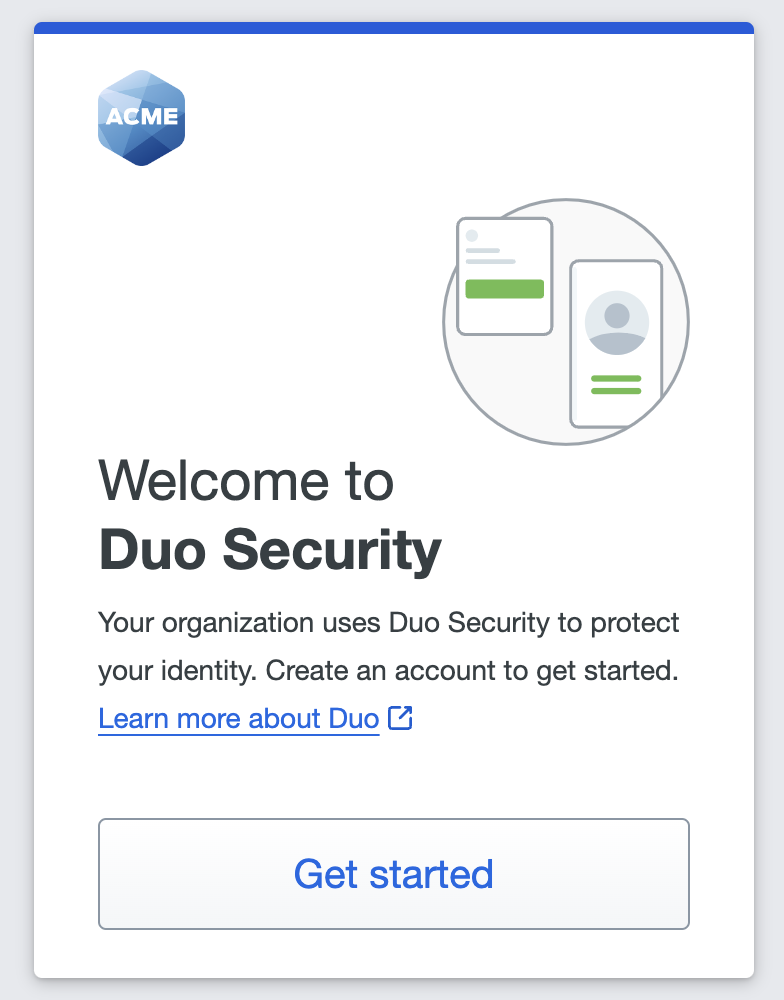
Then continue to this section
Already enrolled in Duo
Official documentation: https://guide.duo.com/universal-enrollment#add-or-manage-devices
Go to https://sso-fdb6e29b.sso.duosecurity.com/devices
Enter you email address:
If you already have a factor enrolled, you will be asked to authenticate with it.
Otherwise, you will be presented with the enrollment page. See section "First enrollment" above.
Then continue to the next section.
Enroll a 1Password passkey
To add a 1Password passkey, select "Add a device":
Then choose "Touch ID", it may be counter-intuitive but that's Duo's way to configure a 1Password passkey.
Continue to the next panel.
During enrollment, a 1Password pop-up will appear on the top right of your browser. Select "New Item" and "Save":
Done! You have added your passkey.
Using your passkey
When prompt for Duo, the same pop-up will appear. Just click on "Sign in" to authenticate.
For a better experience, make sure to click "Yes, this is my device" on this panel:
Official documentation
To enroll a passkey from 1Password: https://support.1password.com/save-use-passkeys/